 Dev portal
Getting Started
A quick introduction to the Developer Portal and how to begin building your first app.
1. What You Can Do Here
The iMBRACE Developer Portal lets you:
- Create and manage app integrations (a.k.a. Journeys)
- Link your hosted UI and embed it via iframe
- Test the app using Dev Test URL
- Publish your app to the public Marketplace
2. Sign In
👉 Visit: https://app.imbrace.co
🔑 Select Developer Portal Mode
Make sure to select “Developer Portal” to access the developer environment.
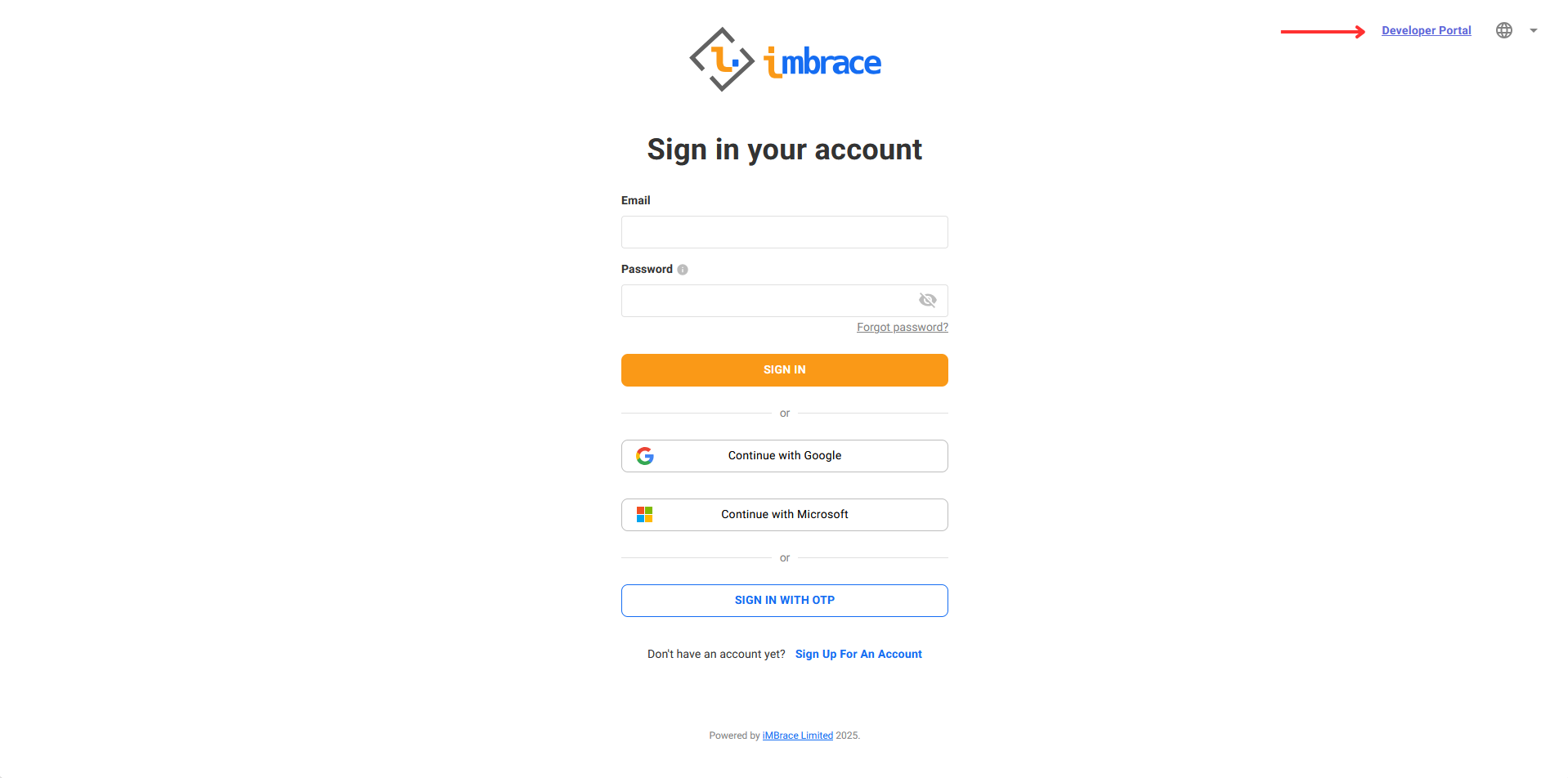
You will then see the login screen with multiple options:
- Login via email and password
- Continue with Google or Microsoft
- Sign in with OTP (One-Time Password)
If you don’t have an account, click "Sign Up For An Account".
3. Developer Workspace Overview
Once logged in, you'll enter the Developer Workspace, which includes:
- My Apps: All your apps in one place
- Data Boards, Workflows, AI Agent, and Settings
- Status filters:
- ✅ Published
- 🕒 In Review
- 📝 Draft
Click Create New App to begin your first integration.
4. Create an App
Learn how to build and publish a new app using the Dev Portal's guided wizard.
Creating an app is a 4-step process:
Step 1: App Details
Fill in:
- App Name
- Description
- App Icon (120×120 px)
- Cover Picture (664×385 px)
- Categories (optional)
✅ Click
NEXT.
Step 2: Link Your App UI
Paste your hosted App UI URL.
- The platform embeds this via iframe
- A Dev Test URL is generated
- Preview appears live in the dashboard
✅ Click
NEXT.
Step 3: Test the App
Use the Dev Test URL to simulate actual user behavior.
Checklist:
- ✅ UI URL is reachable
- ✅ Workflow is connected
- ✅ Test preview renders correctly
Click Test Now. Once validated, move to the final step.
Step 4: Submit for Review
If all tests pass:
- You’ll see a confirmation message
- The app status becomes In Review
- It now appears in the Marketplace review queue
🔒 Need to Publish?
To publish your app to the live Marketplace, please contact the system administrator.
📧 Email: superadmin@imbrace.co
The admin team will verify and approve the app for public listing.
You're done! 🎉
You’ve now completed the creation and submission process for your application.
5. Manage Apps
Learn how to edit, test, update, or delete your apps in the Developer Workspace.
5.1. Edit App Details
From the My Apps section, click EDIT.
You can update:
- App name, description
- Icon or cover image
- UI URL
- Linked workflow
- Categories
Click UPDATE to apply changes.
5.2. Preview and Test
Use the Preview and Test tab to:
- View the Dev Test URL
- See a live iframe preview
- Click Expand Preview for full size
This helps you validate UI behavior without leaving the portal.
5.3. App Status and Actions
In the Status tab, you can:
-
View:
- ✅ Current Status: Draft / In Review / Published
- 📌 App Version
- 📈 Total installs
-
Take action:
- Deactivate: Temporarily unpublish the app
- Delete App: Permanently remove it
⚠️ Deleting an app is irreversible and will remove it from both workspace and marketplace.